CRM

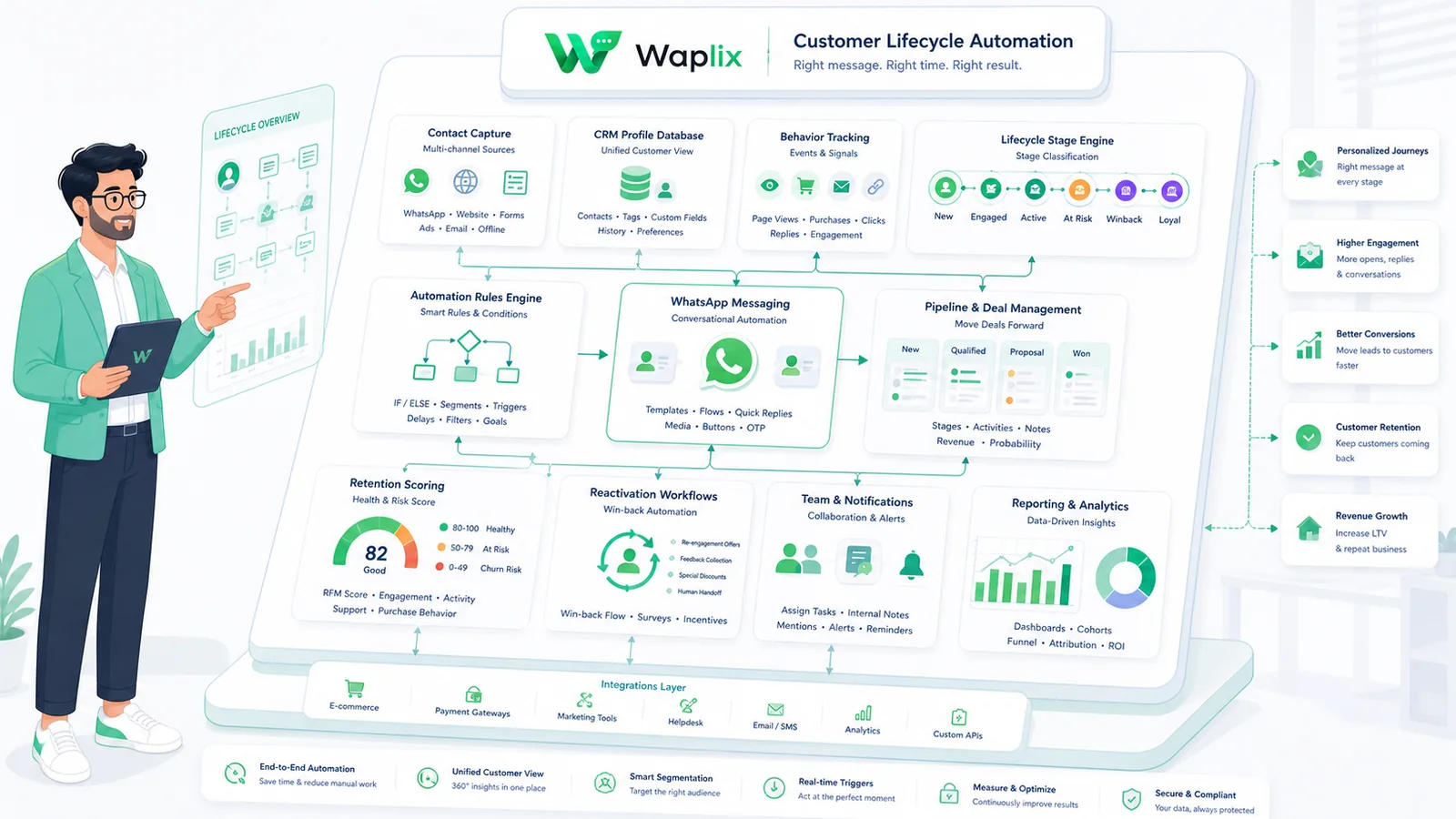
Customer Lifecycle Automation

Formatting customer message touchpoints incorrectly, ignoring active lifecycle stages, or omitting opt-out choices will result in dropouts and spam blocks. Setting up automated customer milestone routing is standard. Follow this lifecycle guide.

Feb 2, 2026 12 min read By Waplix Team
Share:
Customer Lifecycle Automation

Speed up API development with Waplix

Connecting your server backend to the WhatsApp Business API requires building correct request schemas. Unlike simple messaging APIs that accept flat parameters, the WhatsApp gateway processes structured, nested JSON objects. Formatting errors in these payloads cause immediate validation rejections.

Integrating messaging templates, interactive quick-replies, dynamic buttons, and webhooks requires a clear payload reference. Implementing the correct schemas ensures payloads are accepted by the gateway and route accurately.

This developer guide details WhatsApp JSON payload examples. We will examine templates, interactive buttons, media objects, status payloads, setup checklists, and developer integration examples to help you structure your API calls.

Overview: WhatsApp API payloads use nested JSON objects. Developers must format text, media, interactive lists, and template parameters according to strict schemas.

Leverage our simplified JSON payloads, validate structures, and inspect logs in developer consoles.

Create your free developer account See Waplix features
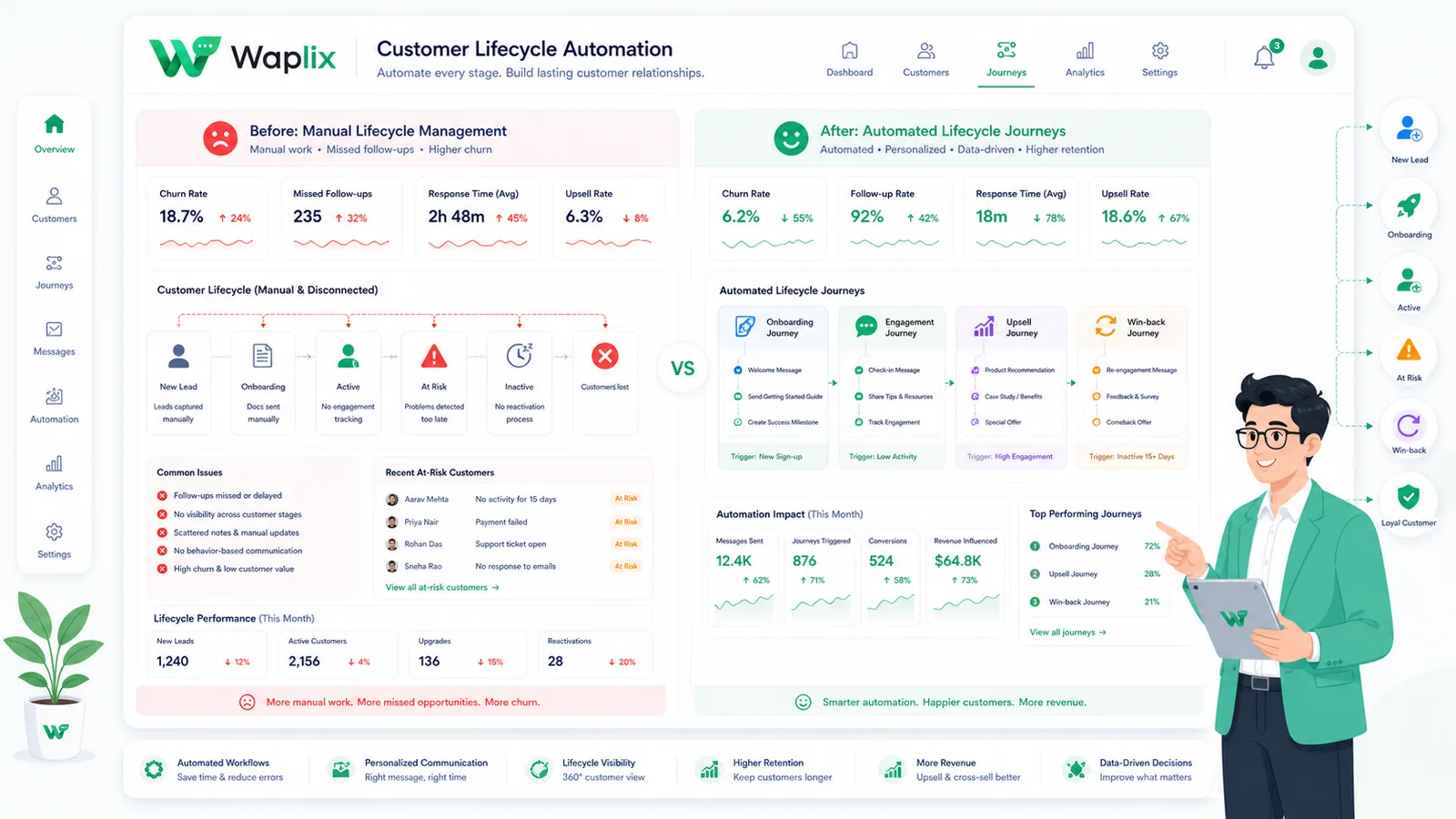
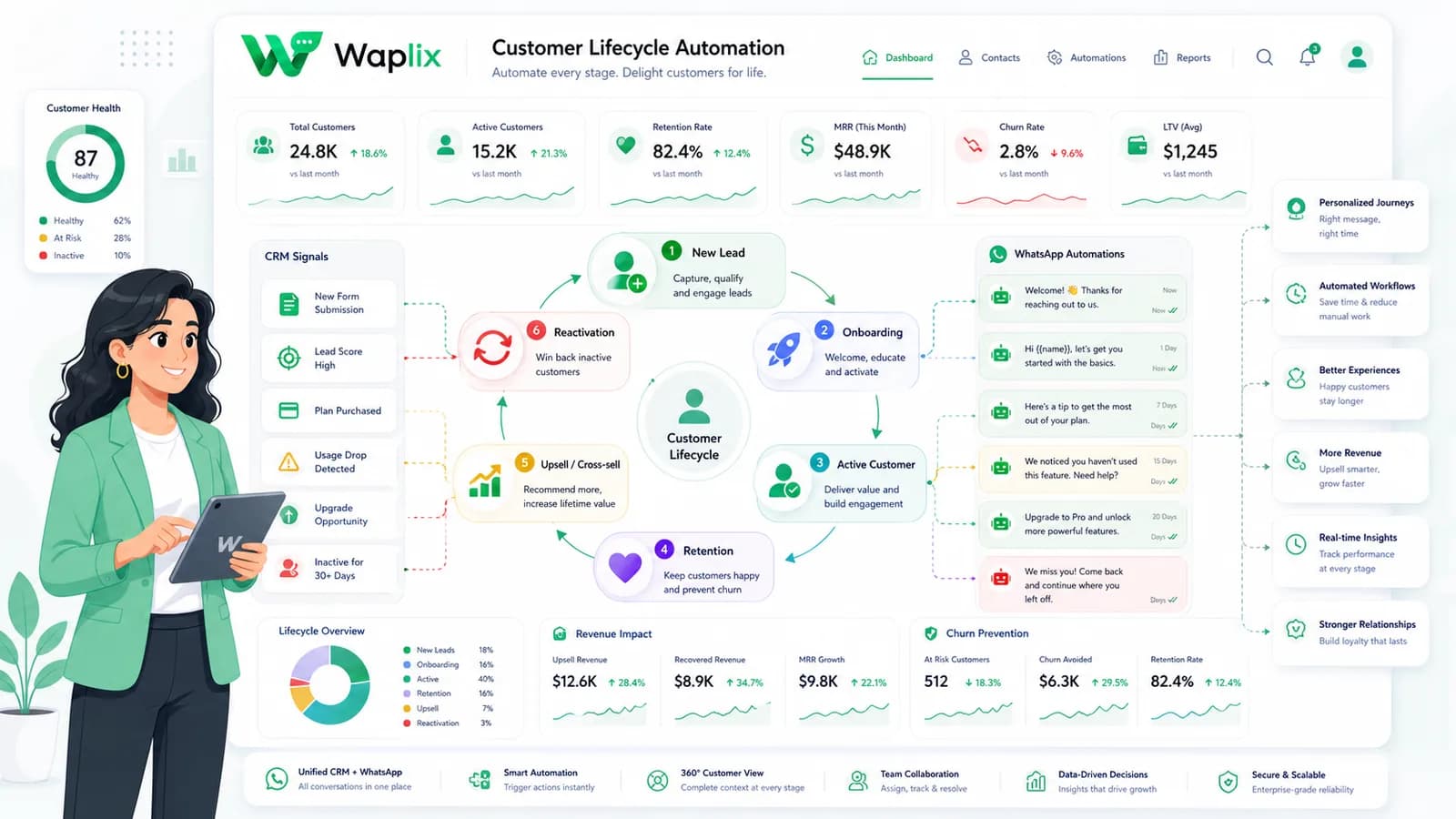
Core customer lifecycle stages

The WhatsApp Business API groups requests by message type. Every payload requires standard rooting fields (`to`, `messaging_product`, and `type`) alongside the specific object container representing the content.

This table compares the primary message types and their schema structures.

Lifecycle StageWhatsApp Message TypeFocal Use CaseCustomer Intent Value
AcquisitionInteractive list options / custom ads.Lead welcome and profile setup.High. Early interactive engagement.
OnboardingMedia templates with document PDFs.Guides, product tours, setup steps.Medium. Structured value delivery.
RetentionUtility status alerts and notifications.Re-engagement codes, cart reminders.High. Re-establishing brand relevance.
FeedbackQuick-reply NPS rating buttons.Post-purchase reviews, survey logs.Medium. High actionable insights.

By connecting systems, you can trigger specific messages based on customer behavior—such as confirming a booking, following up on a delivery, or recovering an abandoned shopping cart.

Core use cases for lifecycle automation

Implement these JSON payload formats across all high-volume automated messaging channels.

1. Transactional order confirmations

Send confirmations and purchase details instantly when checkout completes. These transactional updates keep customers reassured and reduce check-in inquiries.

2. E-commerce cart recovery

Trigger recovery reminders when shopping carts are abandoned. Personalizing templates with product names and checkout links helps recover lost sales.

3. Automated shipping and tracking updates

Integrate delivery updates to notify customers as their package changes hands, providing proactive transparency throughout fulfillment.

4. Out-of-office and away responders

Set up automated responders to handle inbound chats outside business hours, set response expectations, and route urgent queries to triage queues.

Key Takeaway

Prioritize transactional alerts and utility automations first. Establish high delivery rates and compliance metrics before launching promotional broadcasts.

Step-by-step lifecycle setup

Setting up your WhatsApp automation workflows requires careful planning. Follow this step-by-step guide to get started.

01

Register your API number

Register your business number through Waplix. Connect it to your Meta Business Manager and pass verification.

02

Design dynamic templates

Write and submit utility and marketing templates containing placeholder variables for Meta approval.

03

Map event triggers

Identify target business events (e.g. checkouts, bookings) and configure system webhooks to fire payloads.

04

Set up consent checks

Integrate opt-in filters in signup and checkout forms to check contact consent status before sending messages.

05

Design the reply routing

Configure automated auto-replies or route replies to a shared inbox so agents can handle manual follow-ups.

06

Monitor metrics & adjust

Analyze delivery statuses, open rates, and opt-out metrics to optimize message timing and template copy.

Automation Tip: Collect documented consent at checkout. Confirming consent protects your number quality score and keeps campaigns compliant.

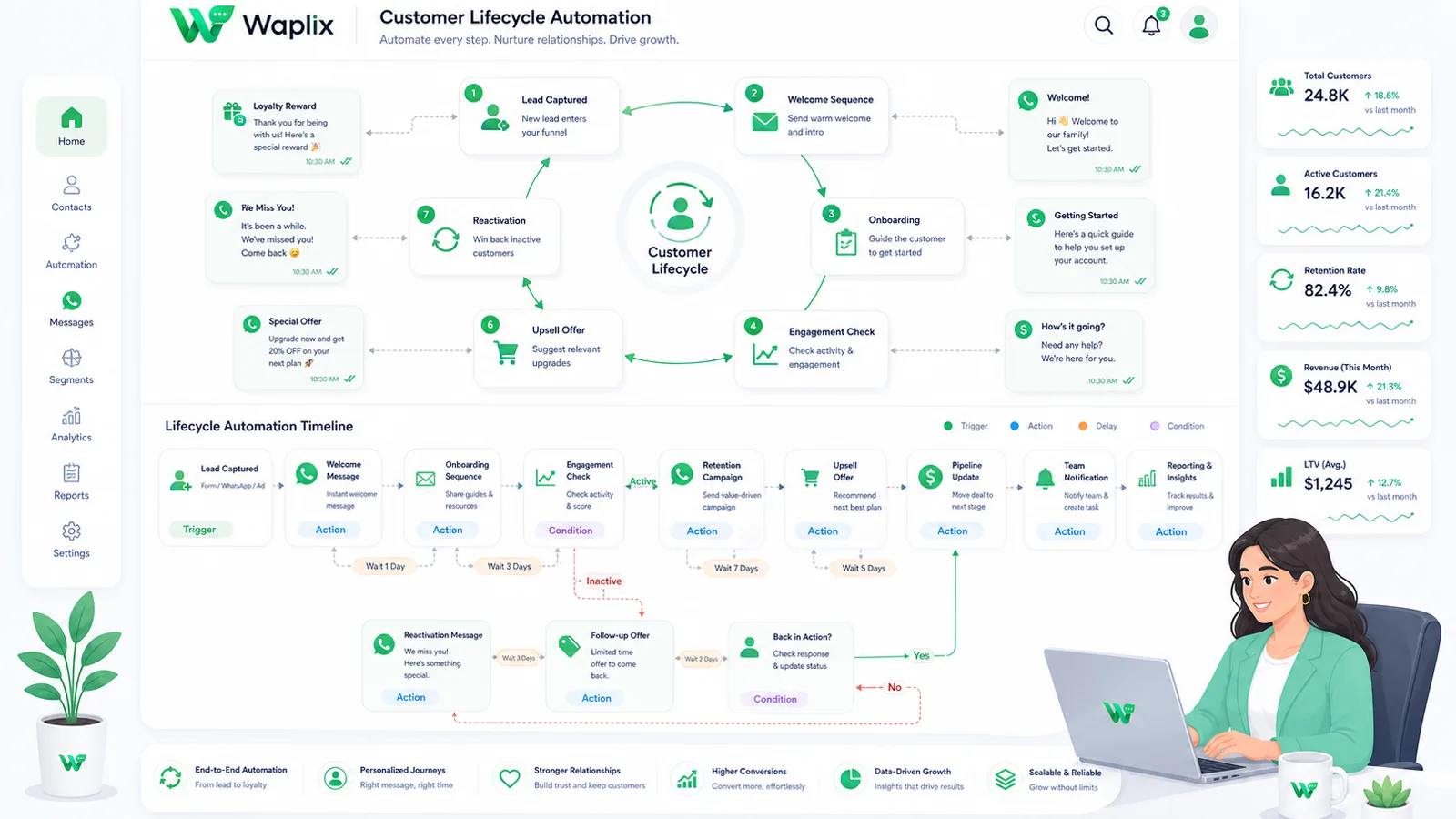
Automated workflow routing pipelines

Automations route messages systematically using logical rules. This workflow diagram illustrates how messages move through an automated routing queue.

Incoming user messages are parsed for active intent. Standard FAQs are resolved instantly by your AI support agent. Complex issues route to human queues, where agents collaborate to resolve them and log performance metrics.

Technical data flow and architecture

A reliable customer support setup requires seamless sync between Meta's WhatsApp servers, your help desk software, and your business backend databases.

When an internal event occurs, your system fires a webhook. The Waplix engine validates the phone format, checks active marketing opt-ins, selects the target template, and submits the payload to Meta's servers for delivery.

Developer Integration: Production JSON payload references

This section provides complete JSON examples for common messaging requests and webhook events.

1. Send interactive quick-reply buttons

Expose dynamic buttons to users. Buttons return defined payloads to your server when clicked.

{
  "to": "+15550144983",
  "type": "interactive",
  "interactive": {
    "type": "button",
    "header": {
      "type": "text",
      "text": "Support Ticket Update"
    },
    "body": {
      "text": "Your ticket #1029 has been resolved. Would you like to close it?"
    },
    "footer": {
      "text": "Please reply below"
    },
    "action": {
      "buttons": [
        {
          "type": "reply",
          "reply": {
            "id": "btn_close_yes",
            "title": "Yes, close it"
          }
        },
        {
          "type": "reply",
          "reply": {
            "id": "btn_close_no",
            "title": "Keep it open"
          }
        }
      ]
    }
  }
}

2. Webhook payload: Button click event

Incoming payload when a user clicks one of the interactive quick-reply buttons.

{
  "event": "message.received",
  "data": {
    "from": "+15550144983",
    "message_id": "msg_b78290acde",
    "type": "interactive",
    "interactive": {
      "type": "button_reply",
      "button_reply": {
        "id": "btn_close_yes",
        "title": "Yes, close it"
      }
    }
  }
}
Developer Security Note: Always store your API keys securely in your environment variables. Validate incoming webhook signatures server-side to ensure payloads originate from Waplix.

For more detailed code samples, visit the API documentation and review our webhook documentation.

Compliance, policies, and opt-out workflows

Operating a customer support desk on WhatsApp requires strict adherence to Meta's messaging policies and local data privacy laws.

  • Opt-in verification. Businesses must secure explicit consent before sending outbound transactional alerts or ticket updates to customers.
  • The 24-hour service window. Free-form messages can be sent within a 24-hour service window opened by a user's message. Messages sent outside this window must use pre-approved templates.
  • Opt-out controls. Include clear opt-out options (such as quick-reply buttons like "STOP") in your templates to make unsubscribing easy and protect your quality rating.
  • Follow local privacy laws. Ensure compliance with GDPR, TCPA, and other relevant regional regulations.
Compliance Note: This guide provides operational advice, not legal counsel. Regulations vary by country and region. Always consult qualified legal advisors to ensure your messaging strategies comply with local laws.

How Waplix manages API credentials securely

Waplix provides small businesses with official WhatsApp API access, eliminating the complexity of managing server infrastructure. Build workflows, manage templates, route replies to a shared inbox, and view campaign analytics—all from a single, unified platform.

Waplix Developer Settings Screen Screenshot Placeholder

Replace this with a real Waplix screenshot showing API keys, sandbox environments, and webhook endpoints.

Suggested screenshot: Managing API credentials and webhook integrations in the Waplix developer dashboard.
Waplix API Payload Log Console Screenshot Placeholder

Replace this with a real Waplix screenshot showing request JSON payloads, response statuses, and trace headers.

Suggested screenshot: The Waplix payload debugger, showing JSON structures and validation states.

Common lifecycle mistakes

  • Incorrect E.164 phone formats. Including spaces, brackets, or leading zeros causes sends to fail.
  • Exceeding quick-reply character limits. Meta limits quick-reply button text to 20 characters.
  • Incorrect component indexing. Not matching index levels in template parameters causes rejection.
  • Missing type parameters. Omitting structural type fields results in HTTP 400 validation failures.
  • Failing to parse button reply payload IDs. Reading only button titles instead of IDs makes routing fragile.

Best practices for lifecycle design

Enforce E.164 formats

Verify all recipient phone numbers conform to E.164 standard formatting (e.g. +15550144983).

Optimize button titles

Keep quick-reply button text short, clear, and well within Meta's 20-character limit.

Map payload IDs

Assign unique programmatic IDs (such as btn_close_yes) to button elements to route replies reliably.

Implement lifecycle triggers

Validate JSON schemas against local models before submitting request dispatches to the gateway.

Conclusion and next steps

Understanding and formatting JSON payloads correctly is essential for building a reliable integration. Following Meta's schemas for text, media, templates, and buttons prevents API validation errors.

Verify number formats, construct test schemas, send validation requests in the sandbox, and parse responses to begin your integration.

Build secure WhatsApp integrations with Waplix

Create a developer account, connect your business number, and automate customer support at scale.

Create your free account Contact our sales team

Related Guides & Insights

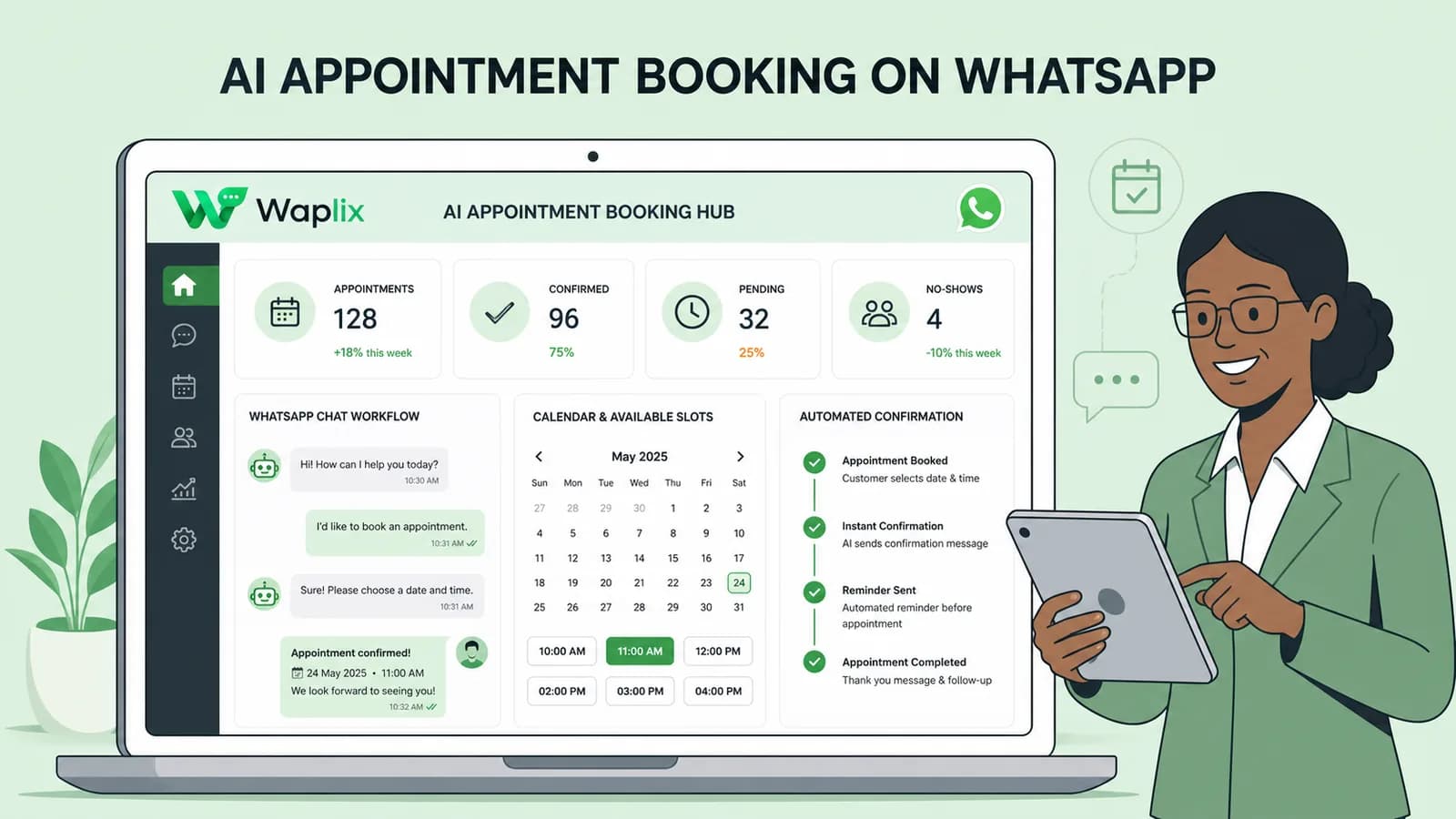
AI Appointment Booking on WhatsApp
AI Agents

AI Appointment Booking on WhatsApp

Learn how to build AI-driven booking systems on WhatsApp, connecting calendar databases to conversational agents, automating updates, and reducing client no-shows.

Read Article
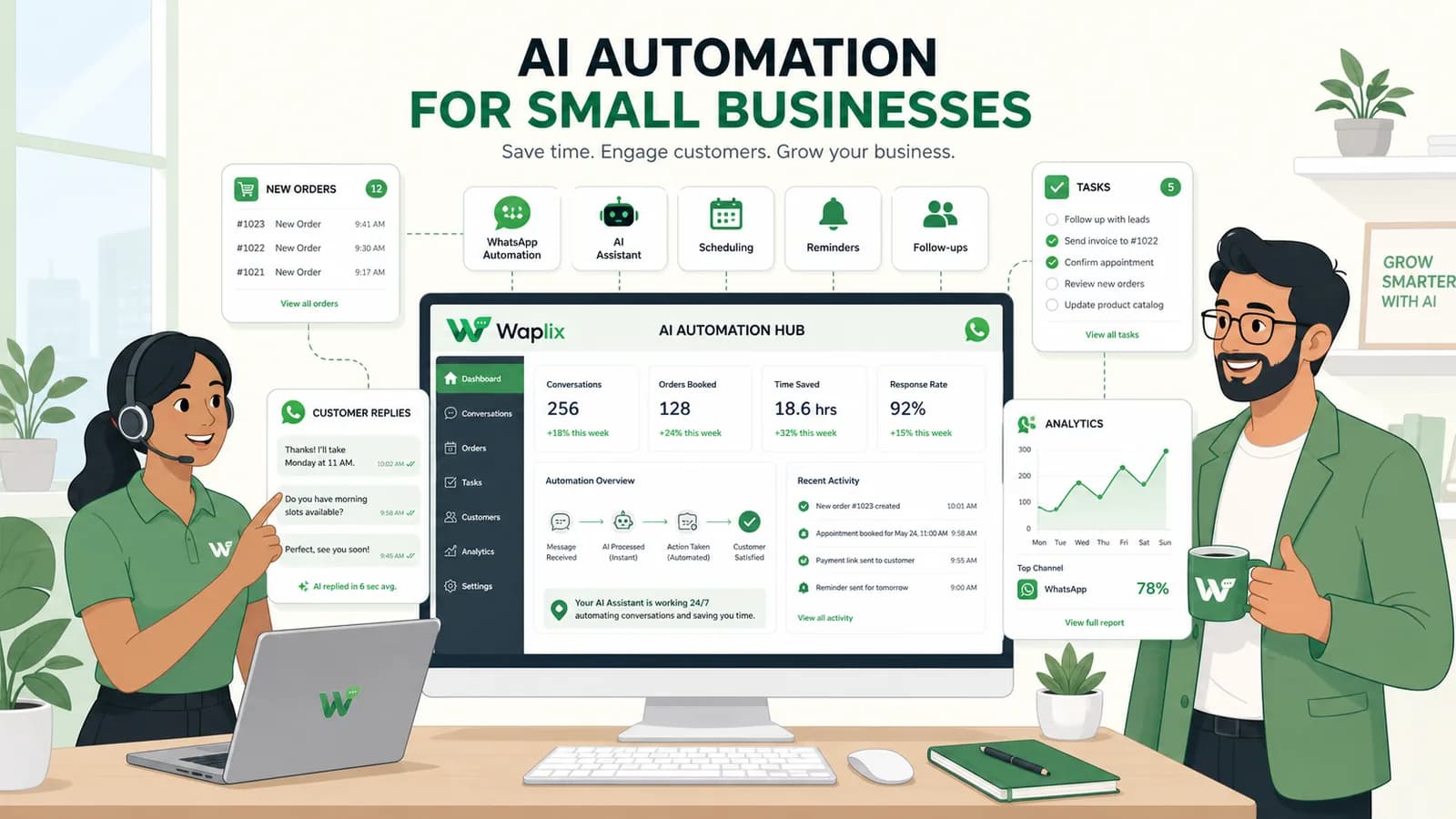
AI Automation for Small Businesses
AI Agents

AI Automation for Small Businesses

Discover practical ways small businesses can leverage no-code AI automation on WhatsApp to manage customer conversations, qualify prospects, and coordinate bookings 24/7.

Read Article
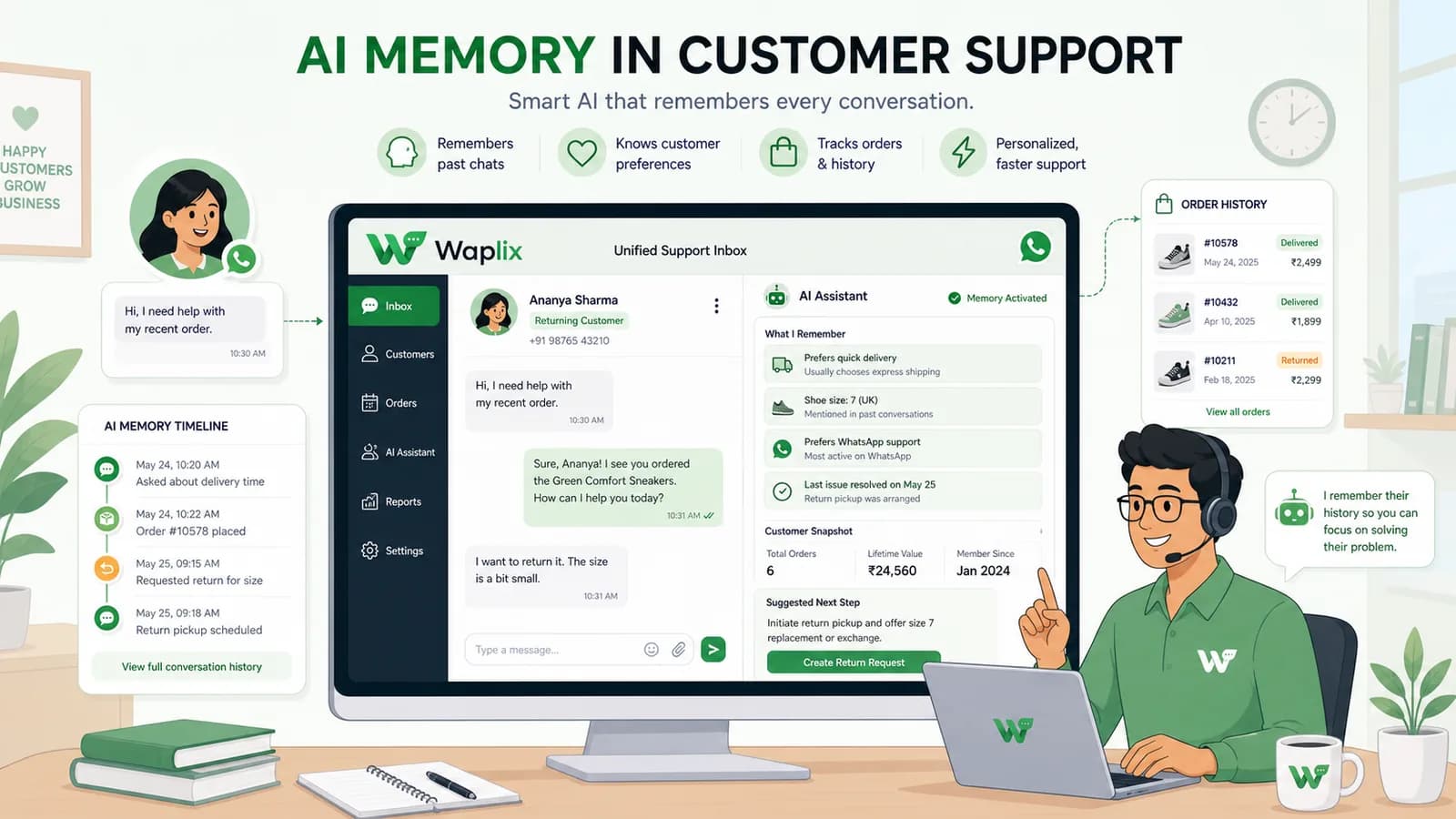
AI Memory in Customer Support
AI Agents

AI Memory in Customer Support

Explore the technology behind AI memory and context retention, learning how session databases personalization results in better, trust-filled client interactions.

Read Article