Automation

How to Automate WhatsApp Messages

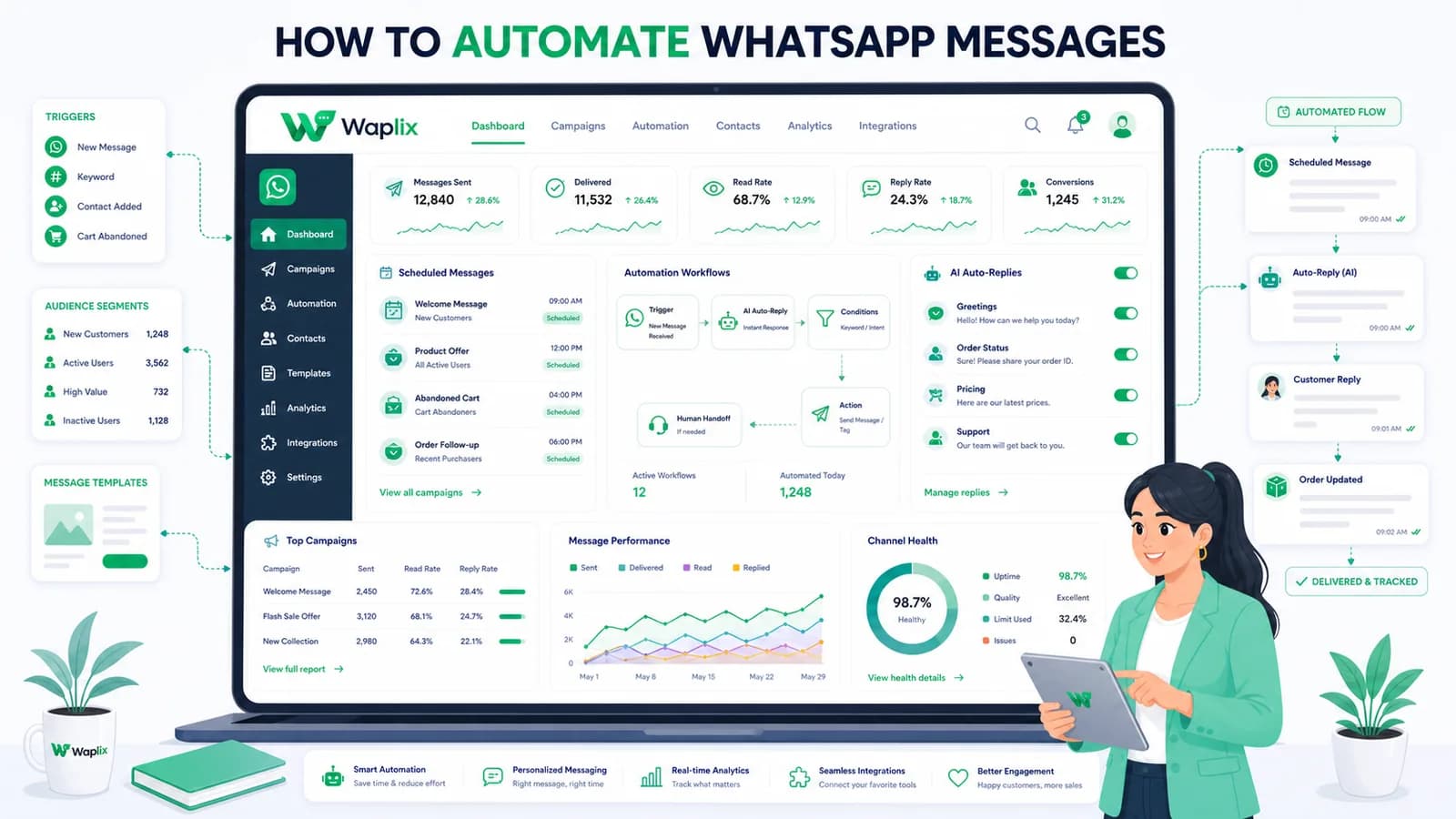
Handling customer messages manually limits your ability to scale operations. Automating WhatsApp messaging shifts your communication from reactive responses into structured, event-driven workflows. Follow this comprehensive guide to configure yours.

Sep 24, 2025 12 min read By Waplix Team
Share:
How to Automate WhatsApp Messages

Build custom WhatsApp automations with Waplix

Customer engagement is shifting to conversational channels. Standard notification methods like email and SMS are struggling with declining open rates and rising costs, prompting businesses to evaluate instant messaging. With over 2 billion active global users, WhatsApp provides a direct, highly visible channel to reach your audience.

However, running professional messaging at scale requires automated workflows. Manual chat management quickly creates support bottlenecks, leading to delayed response times and lost revenue opportunities. Automating your WhatsApp messaging connects your internal business events directly to customer conversations in real-time.

This guide explains how to automate WhatsApp messages using the official Business API. We will examine key use cases, compare manual vs. automated setups, outline step-by-step implementations, and detail developer webhook integrations to help you build reliable automations.

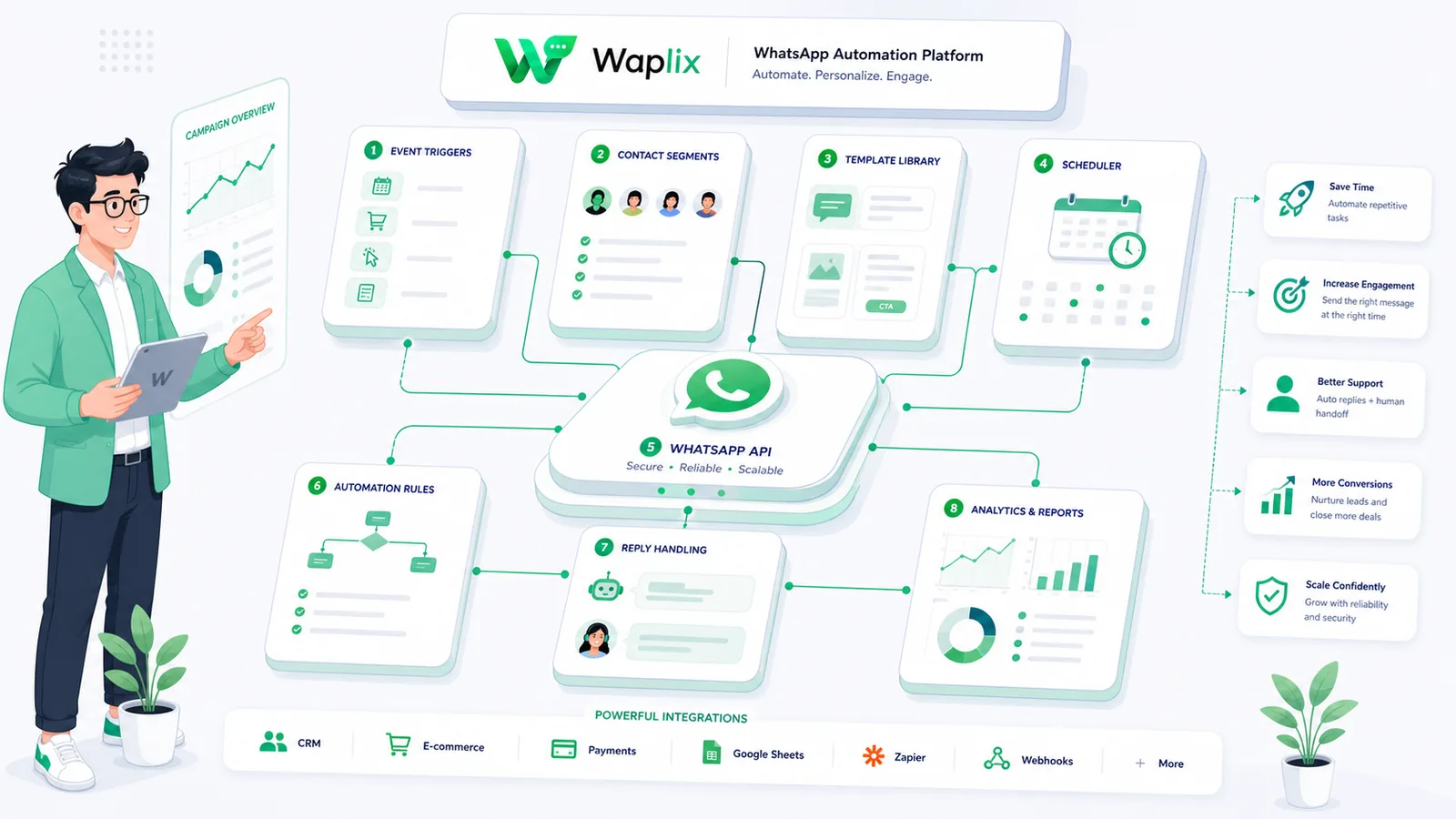
Overview: WhatsApp automation links system events—like purchases, bookings, or cart abandonments—to pre-approved message templates. Platforms like Waplix handle these triggers while maintaining compliance with Meta's guidelines.

Connect website events to template triggers, automate customer follow-ups, and track delivery logs from one dashboard.

Create your free Waplix account See Waplix features
Understanding WhatsApp message automation

WhatsApp message automation uses programming logic or workflow rules to send customer messages without manual intervention. These automations require the official WhatsApp Business API to handle messages programmatically.

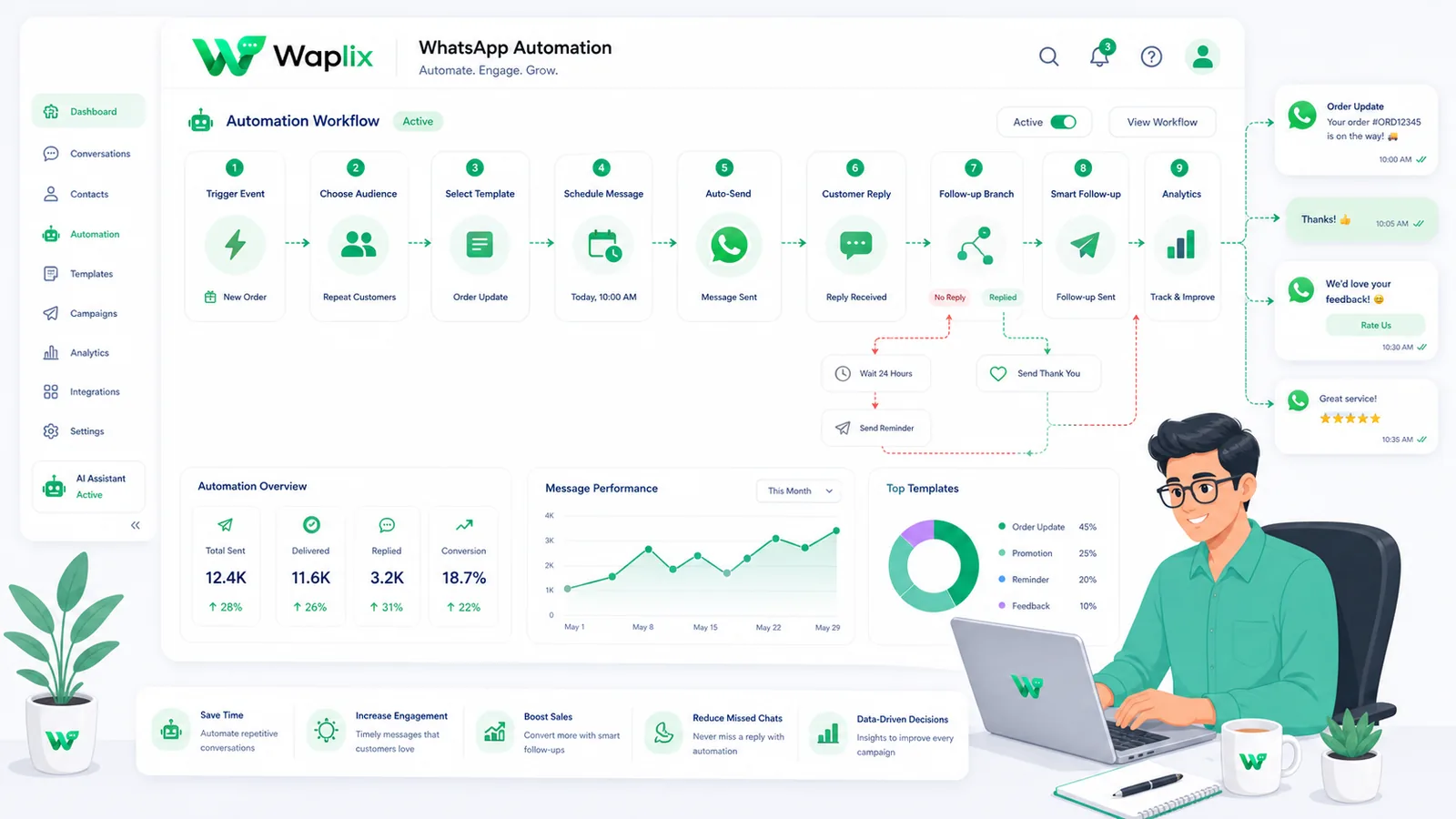
Every automation workflow consists of three main components: a **trigger** (an event that starts the flow), **conditions** (filtering logic that evaluates data), and **actions** (the resulting message template sent via the API).

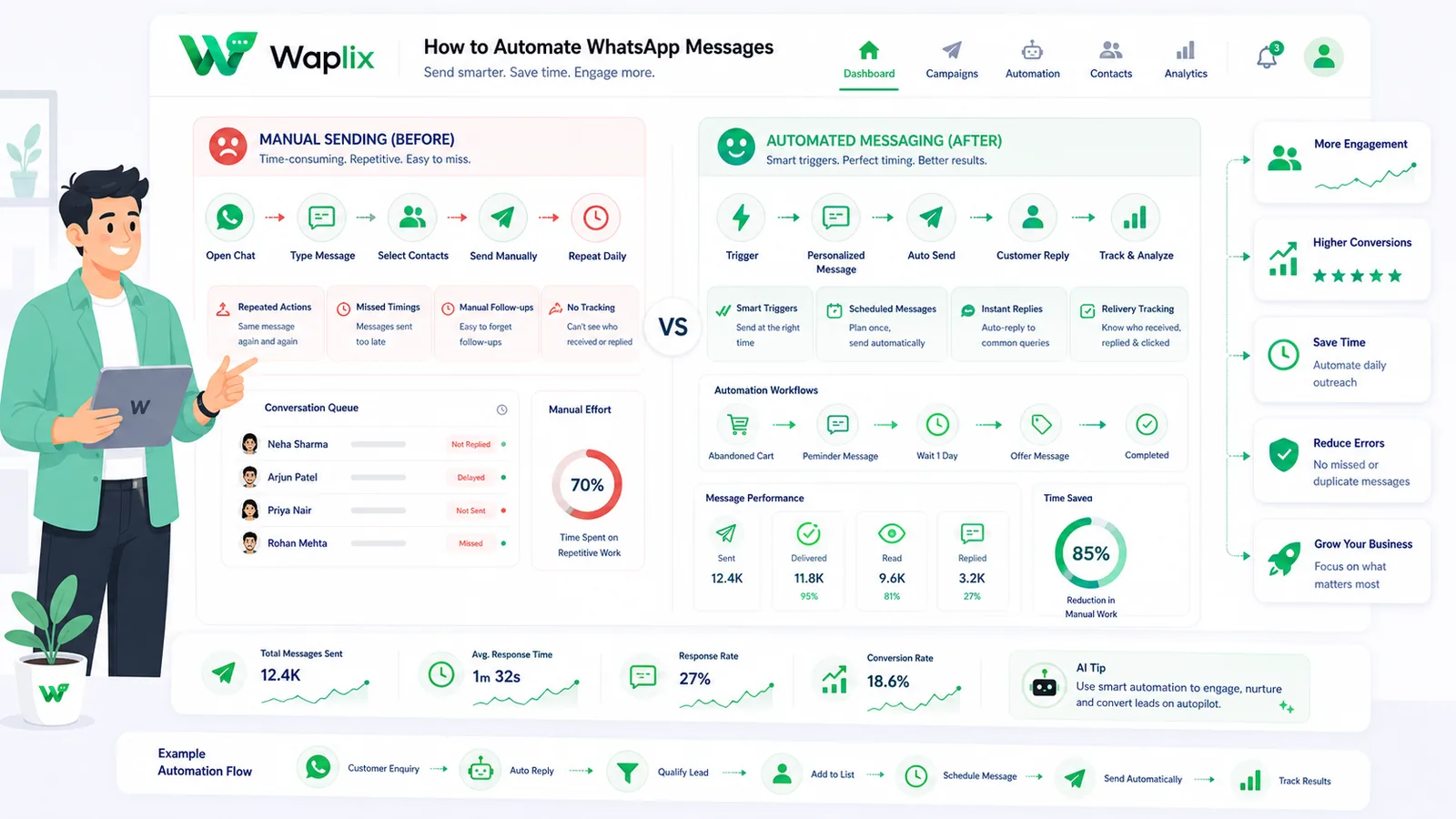
FeatureManual MessagingAutomated API WorkflowsOperational Advantage
Response SpeedDepends on agent availability.Instant (Under 2 seconds)Improves customer experience
SLA and ScalabilityLimited by manual team capacity.Unlimited concurrent triggersHandles high volumes easily
Data IngestionManual copy-paste by agents.Dynamic variable insertion from CRM.Eliminates manual entry errors
Workflow IntegrationNone. Runs in isolation.Triggered directly by website webhooks.Aligns with business events

By connecting systems, you can trigger specific messages based on customer behavior—such as confirming a booking, following up on a delivery, or recovering an abandoned shopping cart.

Core use cases for WhatsApp automation

Focus your automation efforts on high-value customer touchpoints to maximize operational efficiency and ROI.

1. Transactional order confirmations

Send confirmations and purchase details instantly when checkout completes. These transactional updates keep customers reassured and reduce check-in inquiries.

2. E-commerce cart recovery

Trigger recovery reminders when shopping carts are abandoned. Personalizing templates with product names and checkout links helps recover lost sales.

3. Automated shipping and tracking updates

Integrate delivery updates to notify customers as their package changes hands, providing proactive transparency throughout fulfillment.

4. Out-of-office and away responders

Set up automated responders to handle inbound chats outside business hours, set response expectations, and route urgent queries to triage queues.

Key Takeaway

Prioritize transactional alerts and utility automations first. Establish high delivery rates and compliance metrics before launching promotional broadcasts.

Step-by-step automation setup

Setting up your WhatsApp automation workflows requires careful planning. Follow this step-by-step guide to get started.

01

Register your API number

Register your business number through Waplix. Connect it to your Meta Business Manager and pass verification.

02

Design dynamic templates

Write and submit utility and marketing templates containing placeholder variables for Meta approval.

03

Map event triggers

Identify target business events (e.g. checkouts, bookings) and configure system webhooks to fire payloads.

04

Set up consent checks

Integrate opt-in filters in signup and checkout forms to check contact consent status before sending messages.

05

Design the reply routing

Configure automated auto-replies or route replies to a shared inbox so agents can handle manual follow-ups.

06

Monitor metrics & adjust

Analyze delivery statuses, open rates, and opt-out metrics to optimize message timing and template copy.

Automation Tip: Collect documented consent at checkout. Confirming consent protects your number quality score and keeps campaigns compliant.

Automated workflow routing pipelines

Automations route messages systematically using logical rules. This workflow diagram illustrates how messages move through an automated routing queue.

Incoming user messages are parsed for active intent. Standard FAQs are resolved instantly by your AI support agent. Complex issues route to human queues, where agents collaborate to resolve them and log performance metrics.

Technical data flow and architecture

A reliable customer support setup requires seamless sync between Meta's WhatsApp servers, your help desk software, and your business backend databases.

When an internal event occurs, your system fires a webhook. The Waplix engine validates the phone format, checks active marketing opt-ins, selects the target template, and submits the payload to Meta's servers for delivery.

Developer Integration: Waplix API and webhook logs

Developers can connect Waplix to internal CRM systems. Below is an example showing how to trigger a template message and handle inbound support reply webhooks.

1. Send automated template message

Submit a POST request containing your template parameters and target phone number in E.164 format.

POST /api/v1/messages/send HTTP/1.1
Host: api.waplix.io
Authorization: Bearer wplx_live_ab88c99d00e1f2
Content-Type: application/json

{
  "to": "+15550144983",
  "type": "template",
  "template": {
    "name": "order_confirmation_status",
    "language": "en",
    "components": [
      {
        "type": "body",
        "parameters": [
          { "type": "text", "text": "Marcus" },
          { "type": "text", "text": "INC-4029" },
          { "type": "text", "text": "Shipped" }
        ]
      }
    ]
  }
}

2. Webhook payload (Message read status)

Waplix fires a webhook payload to your application when a customer opens and reads the automated message.

{
  "event": "message.read",
  "message_id": "msg_d098127349",
  "recipient": "+15550144983",
  "status": "read",
  "read_at": "2026-07-06T14:46:12Z",
  "metadata": {
    "trigger_event": "order_fulfillment"
  }
}
Developer Security Note: Always store your API keys securely in your environment variables. Validate incoming webhook signatures server-side to ensure payloads originate from Waplix.

For more detailed code samples, visit the API documentation and review our webhook documentation.

Compliance, policies, and opt-out workflows

Operating a customer support desk on WhatsApp requires strict adherence to Meta's messaging policies and local data privacy laws.

  • Opt-in verification. Businesses must secure explicit consent before sending outbound transactional alerts or ticket updates to customers.
  • The 24-hour service window. Free-form messages can be sent within a 24-hour service window opened by a user's message. Messages sent outside this window must use pre-approved templates.
  • Opt-out controls. Include clear opt-out options (such as quick-reply buttons like "STOP") in your templates to make unsubscribing easy and protect your quality rating.
  • Follow local privacy laws. Ensure compliance with GDPR, TCPA, and other relevant regional regulations.
Compliance Note: This guide provides operational advice, not legal counsel. Regulations vary by country and region. Always consult qualified legal advisors to ensure your messaging strategies comply with local laws.

How Waplix powers your shared support inbox

Waplix provides small businesses with official WhatsApp API access, eliminating the complexity of managing server infrastructure. Build workflows, manage templates, route replies to a shared inbox, and view campaign analytics—all from a single, unified platform.

Workflow Process
Suggested screenshot: The Waplix workflow builder dashboard, showcasing automated reply routing rules.
Waplix Template Manager Screenshot Placeholder

Replace this with a real Waplix screenshot showing approved templates, parameters, and quick-reply settings.

Suggested screenshot: Managing template components and parameters inside the Waplix template manager.
API Log Dashboard Screenshot Placeholder

Replace this with a real Waplix screenshot showing API request histories and webhook delivery logs.

Suggested screenshot: The Waplix API log console, displaying sent, delivered, and read statuses for tracking.

Common mistakes teams make

  • Using personal numbers for business support. This violates Meta's Terms of Service and limits multi-user routing.
  • Allowing tickets to go unassigned. Every incoming conversation must be routed to a specific agent queue automatically.
  • Hardcoding values inside template variables. Use dynamic placeholder variables to keep templates flexible.
  • Losing historical context. Keep your shared inbox synchronized with your CRM database so agents have full context.
  • Neglecting collision detection. Sending duplicate agent replies to the same customer damages brand credibility.

Best practices for shared inbox management

Configure auto-assignment

Use automatic routing to assign incoming chats to available agents instantly, reducing response bottlenecks.

Integrate CRM profiles

Pull customer history and contact tags directly into the sidebar console to give support agents full context.

Enforce collision rules

Train support agents to respect collision warnings and avoid typing inside threads claimed by active colleagues.

Regularly monitor SLAs

Track metrics like First Response Time (FRT) and Resolution Time to identify bottlenecks and optimize staffing levels.

Conclusion and next steps

A shared team inbox is essential for businesses looking to scale customer communications. Moving from disconnected apps to official Business API platforms helps support teams streamline routing, prevent collision, and resolve tickets faster.

Focus on collecting documented opt-in consent, designing pre-approved templates, and setting up routing for incoming replies. Taking these steps protects your brand reputation and ensures a reliable communication channel for your business.

Build automated WhatsApp workflows with Waplix

Create a developer account, connect your business number, and automate customer support at scale.

Create your free account Contact our sales team

Related Guides & Insights

AI Appointment Booking on WhatsApp
AI Agents

AI Appointment Booking on WhatsApp

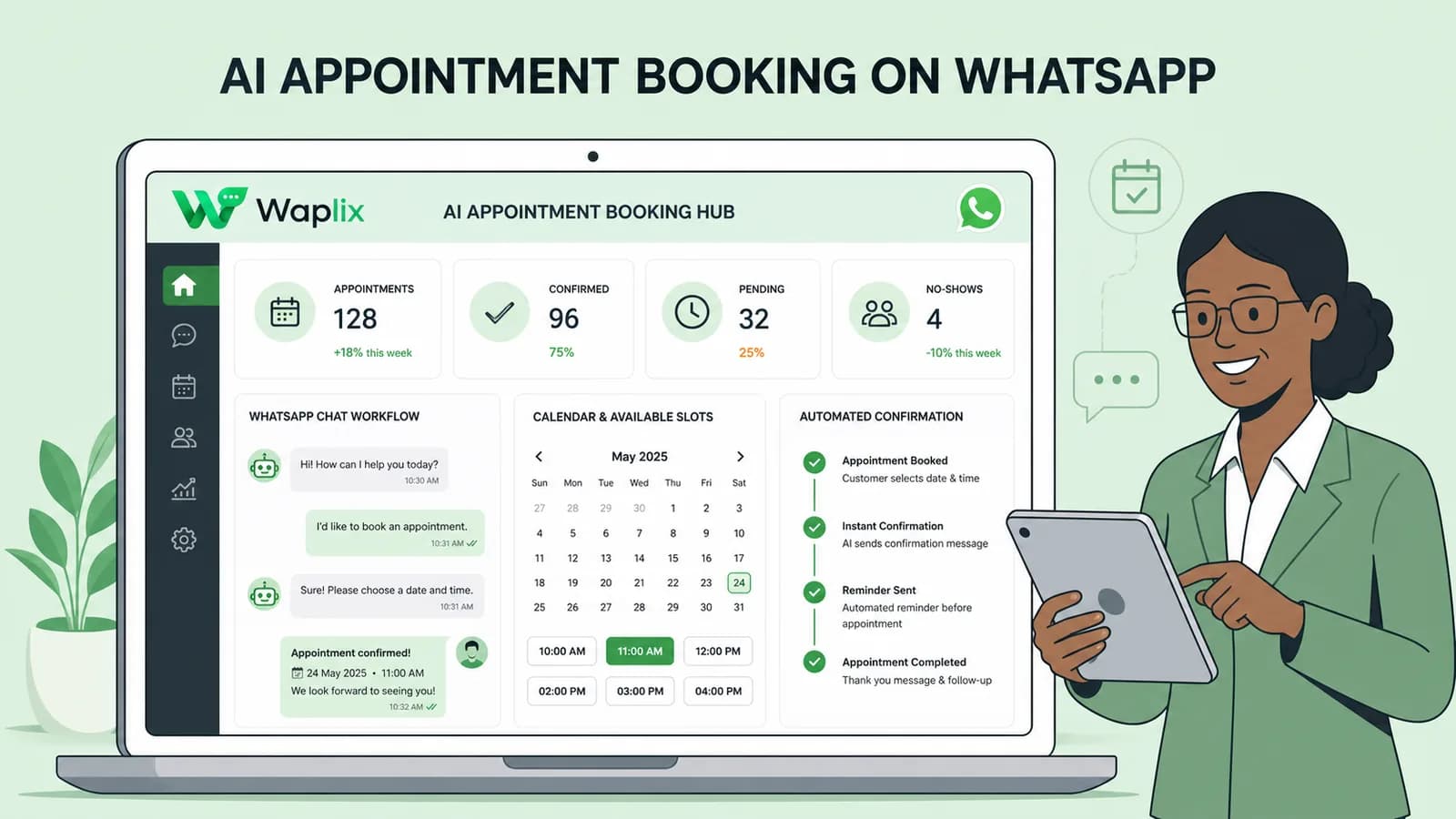
Learn how to build AI-driven booking systems on WhatsApp, connecting calendar databases to conversational agents, automating updates, and reducing client no-shows.

Read Article
AI Automation for Small Businesses
AI Agents

AI Automation for Small Businesses

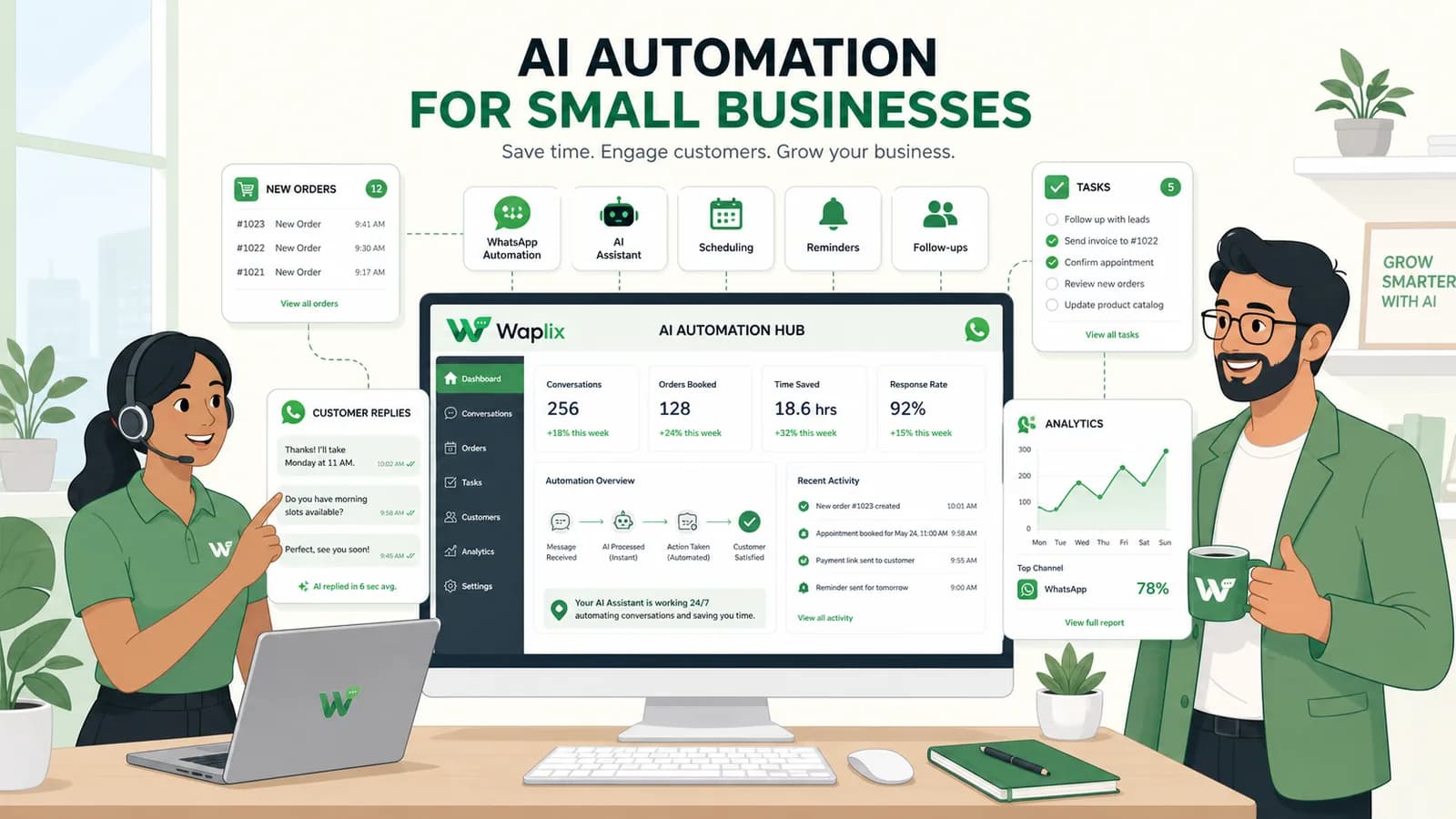
Discover practical ways small businesses can leverage no-code AI automation on WhatsApp to manage customer conversations, qualify prospects, and coordinate bookings 24/7.

Read Article
AI Memory in Customer Support
AI Agents

AI Memory in Customer Support

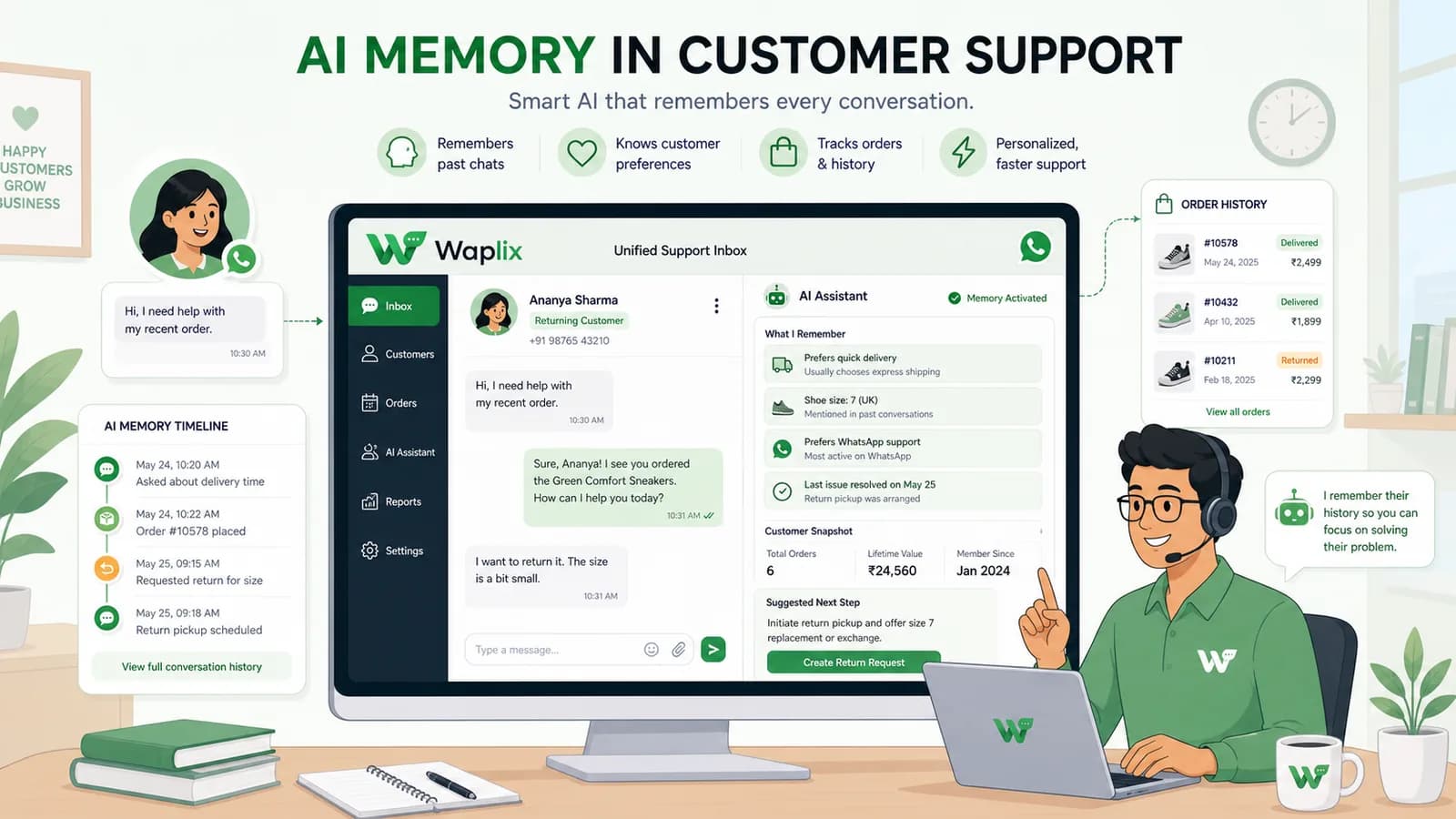
Explore the technology behind AI memory and context retention, learning how session databases personalization results in better, trust-filled client interactions.

Read Article